How-to Guide
Everything you need to know about HomePageCloud in about two minutes. Your links, organized your way, on every device.
In a hurry? Follow the 10-minute setup, which also has sample prompts so Grok Bot can organize your links for you.
1. Getting started
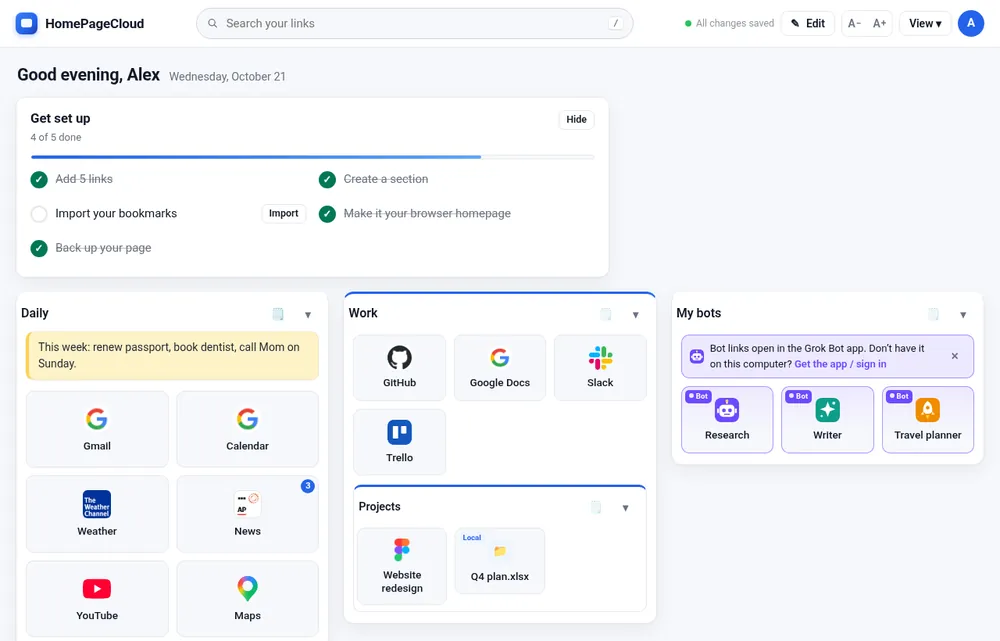
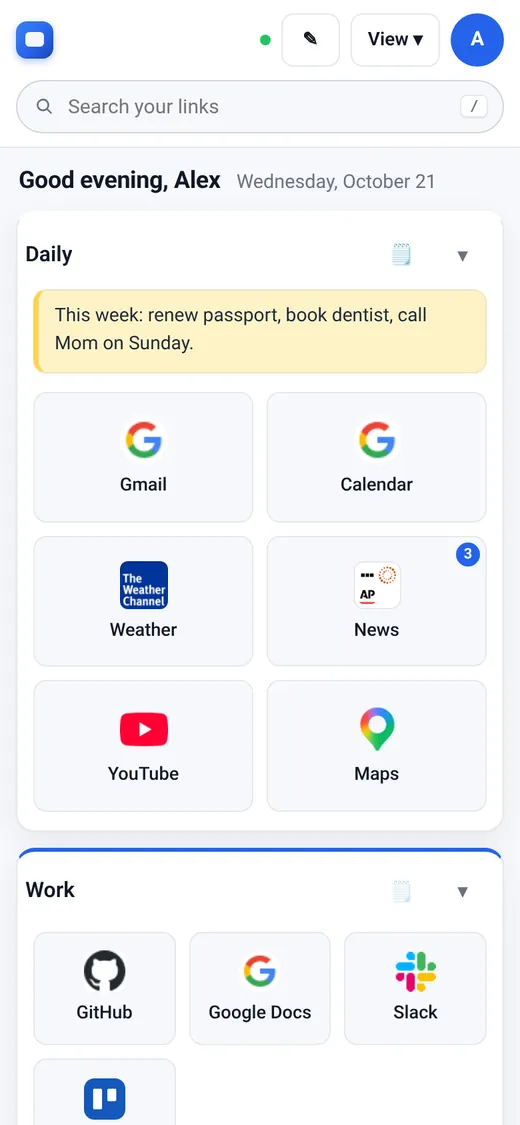
After you sign in, your homepage shows a few starter sections with links. Search sits at the top, and the Get set up checklist shows what to try next. Everything saves automatically. Watch for All changes saved at the top.
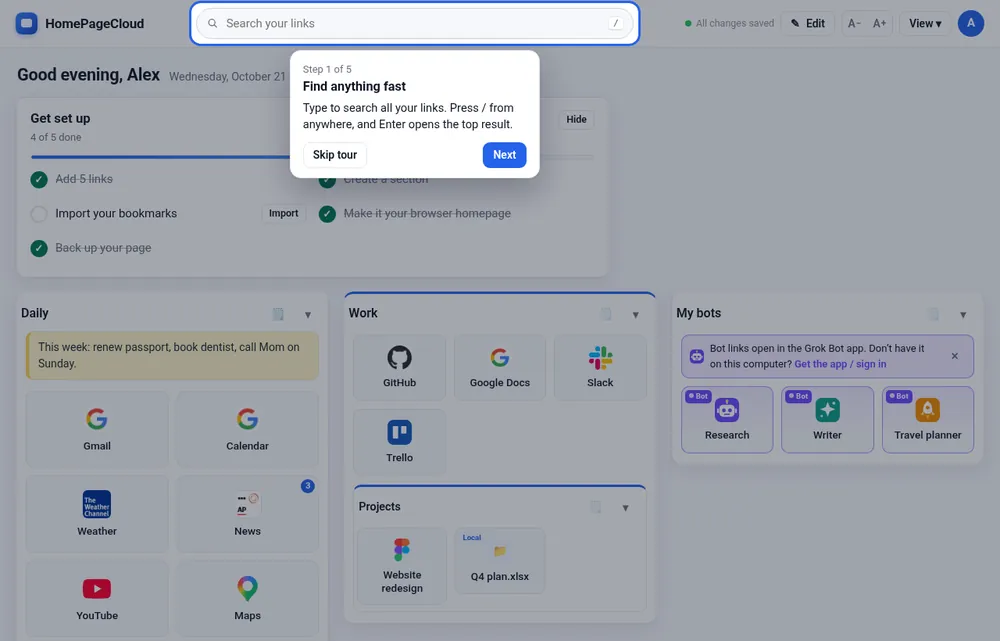
New here? A five-step tour points out the essentials. You can replay it any time from this page, or from the account menu → Take the quick tour.
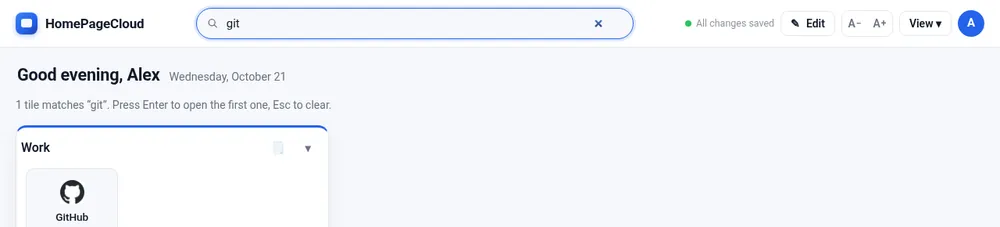
Quick search: press / and type. Matching tiles stay visible, and Enter opens the top result.
2. Sections
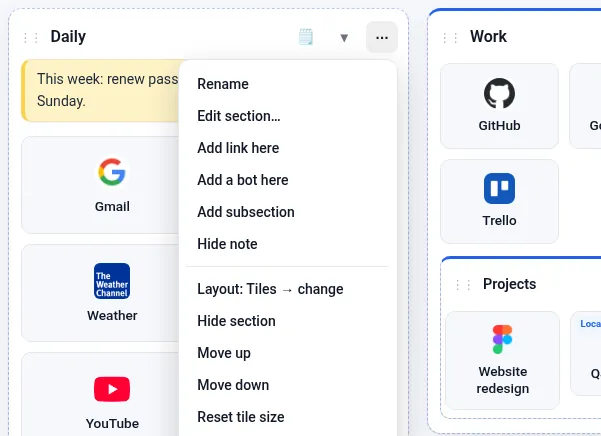
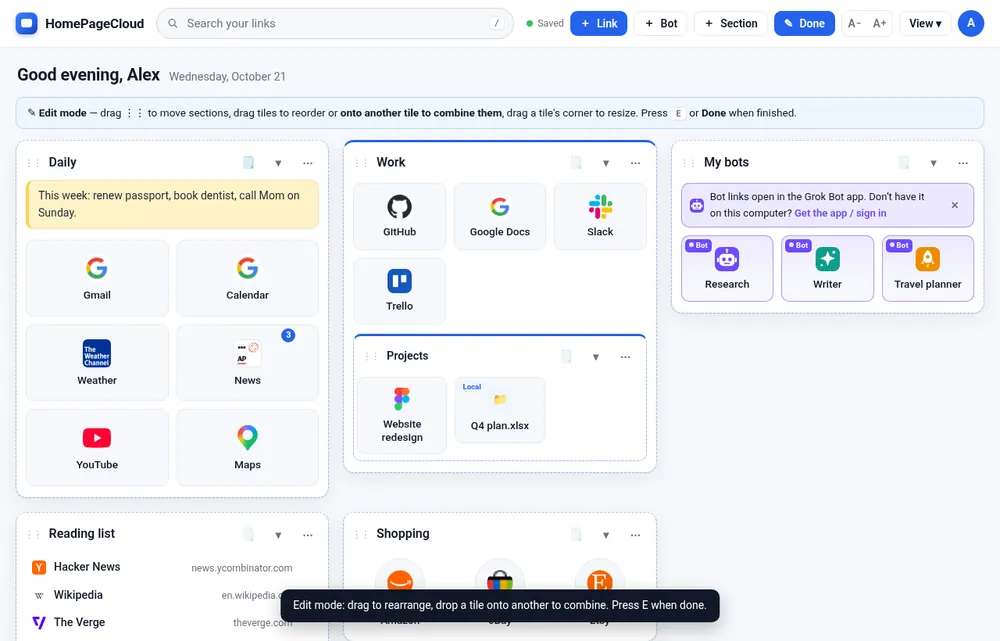
Sections are the boxes that hold your links, like Work, Daily or Shopping. To make one, turn on Edit and click + Section. Put sections inside other sections for sub-topics (up to 3 levels). In Edit mode, each section's ▾ menu lets you rename it, change its layout or colour, add a note, hide it, move it, or delete it. A section can also be a link itself: give it a web address and its title becomes clickable.
3. Adding links
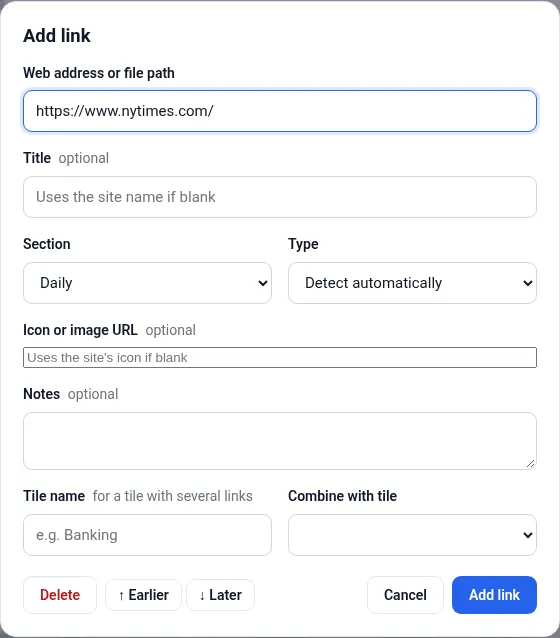
- Type it: Edit → + Link (or press N). Paste the address. The title and icon are filled in for you.
- Drag it: drag a link or the little icon from your browser's address bar onto a section.
- Paste it: copy a web address and press Ctrl+V on your homepage.
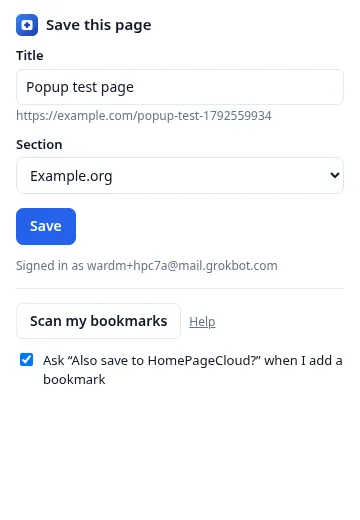
- Save button: drag the Save to HomePageCloud button to your bookmarks bar. One click saves whatever page you're on. It's in the account menu and on the Save page.
- Browser extension (optional): click its toolbar button on any page, or right-click a link → Save to HomePageCloud. How to get it.
4. Tiles and groups
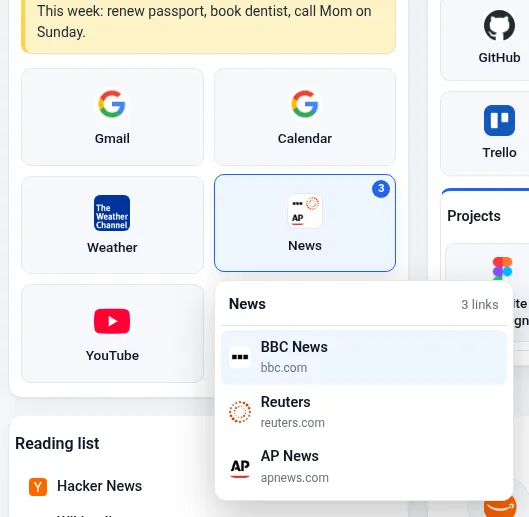
Click a tile to open the site. To group links into one tile (for example several news sites under one “News” tile), turn on Edit and drop one tile onto another. A badge shows how many links the group holds. Click a group to pick one of its links.
Turn on View → Show “Most used” or Show “Recently added” to get handy shortcut rows at the top. Most used is based on click counts that only you can see. You can turn that off in Account → Privacy & usage.
5. Edit mode
Click ✎ Edit (or press E) to rearrange. Drag tiles and sections to move them. On phones and tablets, press and hold briefly, then drag. Drag a tile's bottom-right corner to resize all the tiles in a section. The ✎ on each tile edits it. Click Done when you're finished. Your homepage can't be changed by accident outside Edit mode.
6. Layouts and themes
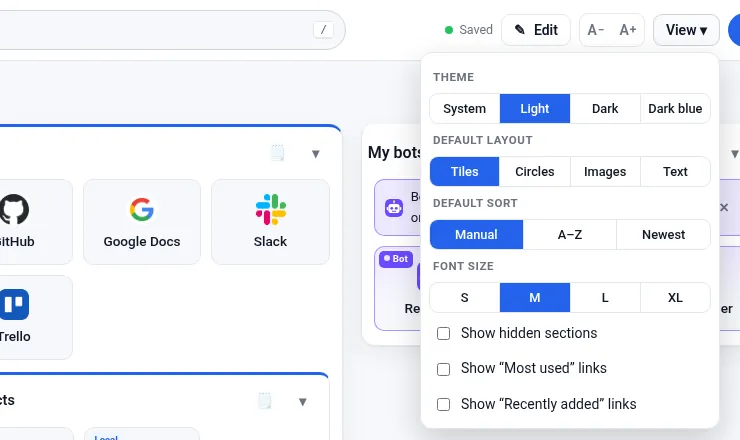
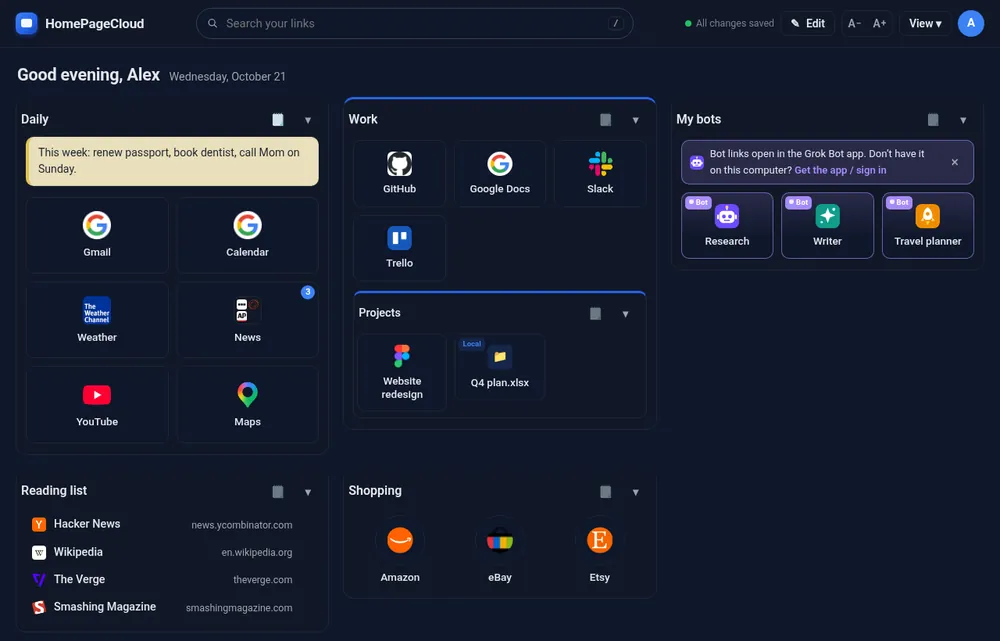
The View menu sets the theme (System, Light, Dark, Dark blue), the default layout (Tiles, Circles, Images or a compact Text list), sorting, and text size. A− / A+ change the size quickly. Each section can override the layout from its ▾ menu.
7. Notes
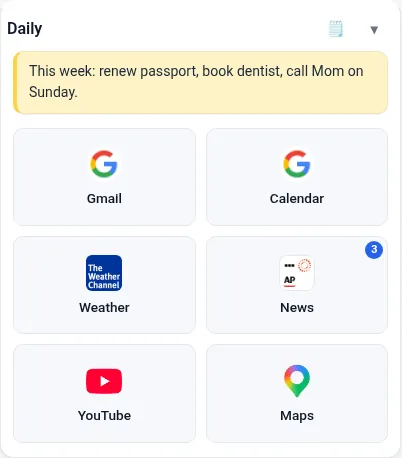
Every section can have a sticky note for reminders, to-dos or phone numbers. Click the 🗒 icon in the section header. Type, and it saves itself. You can pick a colour or hide the note.
8. Bots
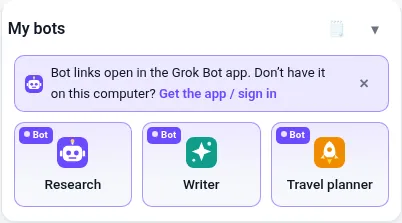
Add Grok Bots as tiles: Edit → + Bot, paste the bot's link (grokbot://…) or id, and pick an icon. Clicking a bot opens it in the Grok Bot app. More about bots.
9. Importing bookmarks
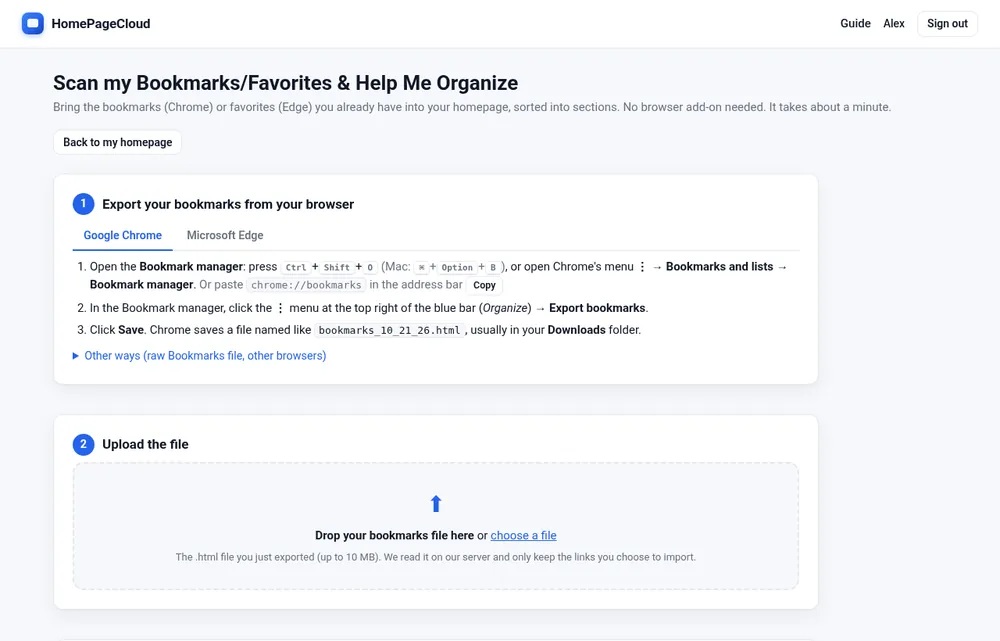
Bring in everything you already have. Export your bookmarks from Chrome or Edge, then use Scan my Bookmarks/Favorites & Help Me Organize. You'll review suggested sections before anything is added. Duplicates are skipped, and you can undo an import with one click.
Paste a list: on the same page, paste a list of links, one per line, like Work: GitHub - https://github.com. This is handy for lists from a document or from Grok Bot (see the sample prompts). It gets the same preview and one-click undo.
10. Backup & restore
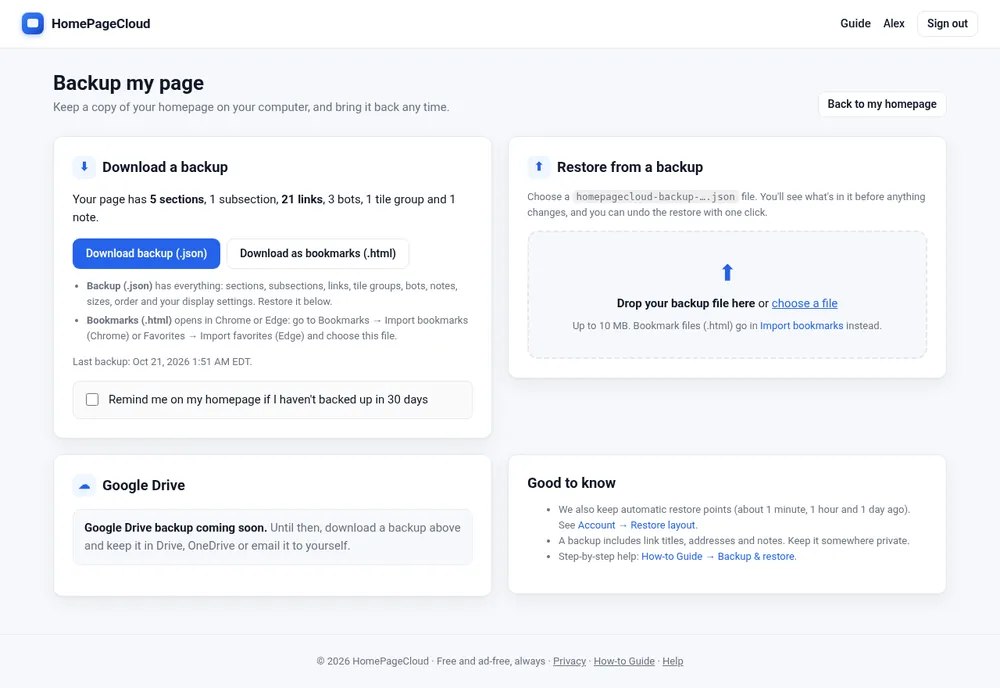
Account menu → Backup my page.
- Download a backup: one click saves a complete copy of your sections, links, groups, bots, notes, sizes and settings as a small file. Keep it on your computer, in Google Drive or OneDrive, or in your email.
- Bookmarks file: also download your links as a standard bookmarks file that any browser can import.
- Restore: choose a backup file. You'll see what's in it first, then pick Replace (your page becomes exactly the backup) or Merge (only missing links are added). Either way, you can undo with one click.
- A gentle reminder appears if you haven't backed up in 30 days. You can turn it off on the Backup page.
11. Make it your homepage
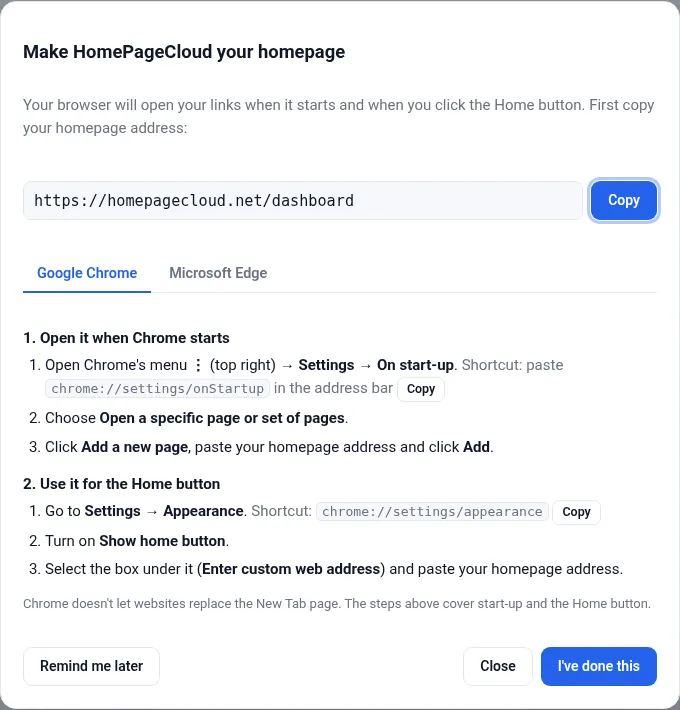
Account menu → Make this my browser homepage… walks you through Chrome or Edge in under a minute. Your links then greet you every time you open the browser.
12. Links to files on your computer
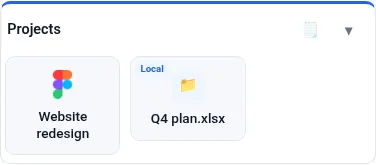
You can save links to files and folders, such as C:\Users\You\Documents\Budget.xlsx. Browsers don't let websites open local files directly, so these tiles are marked Local. Clicking one copies the path, which you then paste into File Explorer. Details.
13. Phones, tablets and other computers
Sign in anywhere and you get the same homepage. Changes save to your account right away. If you change something on another device, an “Updated on another device” note offers to refresh.
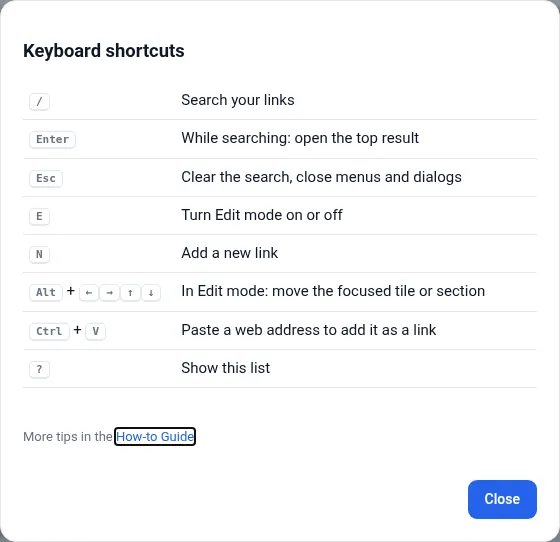
14. Keyboard shortcuts
Press ? on your homepage for the full list.